Centrend

Cybersecurity

Should my office be Wi-Fi only?

WiFi has come a long way in terms of speed and reliability. But there is still nothing like those irritating wires that are much faster and more reliable than interference-prone WiFi. Here are some guidelines for when you can go WiFi only and why you might not want to ditch all the wires just yet. This is a simple decision, and if you “Google” the topic, you will find lots of detailed, complicated articles arguing in one direction or the other. It comes down to this: the only place for WiFi is when you need portability and mobility. If your office has a lot of workers moving around and working in different areas of your space, it could make sense to let them be WiFi only. Otherwise, hard wire them and you will have a faster, simpler, and much more reliable network. You have to consider the physical capabilities of your computers and laptops. Are they capable of WiFi? Desktops sold today won’t include WiFi connectivity without specifically adding that capability. Many modern ultra-portable laptops, such as my Microsoft Surface Pro 6, have WiFi but don’t even have an ethernet port. If you order new equipment, make sure you know if it needs to have WiFi based on how and where it will be used. Need help to decide? Give us a call, and we’ll talk it through with you.

Should my office be Wi-Fi only? Read More »

Should you back up your cloud data?

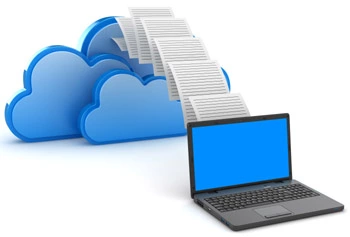
So you’ve put your data in the cloud. Should you back it up? The short answer is Yes!  This article explains why I think it’s essential.  We put data in the cloud for different reasons. Sometimes it is the primary access point for our data, and it’s in the cloud for easy access from anywhere in the world. Or we might put the data in the cloud because, with today’s high standards for cloud security, it’s the safest place to manage confidential data. The cloud might be used as a backup of data that resides on our local computers or file servers. Your reasons for putting data in the cloud may vary, but here are the top reasons you should be backing it up yourself:  While the provider may have features that let you restore or roll back files and folders to a previous point, these processes can take a long time, and the copies of files may not go back as far as you need them to. Consider a file that is accessed quarterly, and you don’t notice that in setting up the file for the next quarter, you accidentally overwrote last quarter’s good data.  If your cloud provider only keeps copies for 30 days, your last quarter’s data is lost! A backup is only as good as the last test proves it to be. Many folks don’t find out their backup system doesn’t work until they need to restore something. By then it’s too late. Cloud providers may not be clear about what is backed up, how often, or how long and cumbersome it can be to restore the data when you need to. If your cloud provider experiences a failure, your data will be inaccessible. While it’s unlikely to be a permanent, catastrophic failure, the provider may be down for a long time. What will it cost you or your business to lose access to the data for a couple of days or more? With your local copy, you can restore the file quickly. If your Internet Connection fails for an extended period, you will want to restore your backup locally to get back up and running. You’ll be glad you had a local copy to fall back on!   Cloud data is not impervious to crypto-locker-type viruses. Especially true when you have a drive mapped to the data source. If a folder or group of files is encrypted and this compromise goes undetected for some time, your only recourse will be to restore a local backup. Having a local backup is inexpensive insurance and makes good sense. The ability to restore a backup locally provides your business with a great contingency plan to keep you up and running should the cloud provider go down for any reason.

Should you back up your cloud data? Read More »

How to Keep Passwords Safe in Email

No doubt, the most secure way to give someone a password or other confidential information is in person or over a private phone call. There are times, however, when you want to send a password or a bank account number via email simply because of the convenience. This article explores how to send secure information safely. Most people find email encryption software to be expensive and complicated to work with. Ephemeral messaging may be the answer. When something is ephemeral, it is considered “temporary” or “only lasting a short time.” A great early example of ephemeral messaging is from the James Bond movies. James Bond would often receive a tape about his secret mission. Upon hearing the message, the final thing it would warn 007 is that the message will self-destruct. SnapChat is a very commonly used application that is a modern example of ephemeral messaging. SnapChat lets users of its phone application send pictures or text that disappear either after a short time or after being viewed. While it’s popular among teenagers and some adults, it’s not practical for business use. The solution I recommend for business is called Shush.  It’s an online service provided free by Articulate, makers of e-learning course authoring tools. You can try Shush out for yourself at this link: https://shush.articulate.com/. You will be pleasantly surprised to find that the service is completely anonymous and does not require a login for either the sender or receiver! You go to the site and enter (or copy/paste) the information you want to encrypt into the presented window: After you enter the content, you then choose how long you want the message to live. You obtain the link by clicking the share button.  Click the Copy button and paste the link into an email message to send to your contact. Once the duration expires, the link will no longer work, and your message can no longer be retrieved. Depending on the duration you set, the message will be viewable to anyone that has the link. The default and most secure solution is “When it’s first viewed.” Upon the first view is an excellent choice for messages that you know will be read promptly as they only last for a maximum of 12 hours. Messages sent this way can only be viewed one time, and then they are gone forever. Messages that are set for a specific duration such as a day or a week can be seen again and again by anyone with the link. Thank you for reading. This blog post will now self-destruct!

How to Keep Passwords Safe in Email Read More »

Are public WiFi’s Safe?

A friend of mine and I were together at a venue, and I asked him if he was able to get on the local free Wifi that was provided. He said, “I usually don’t go on public wifi because I don’t think it’s secure.” This article describes what I told him I thought the real risks were so he could decide if he could use it safely. First, when connecting a Windows PC to public WiFi, the computer will ask what kind of network you are connecting to. It usually offers three choices: Public, Home, and Work. What you choose here makes a big difference in how secure your computer will be as it adjusts the firewall along with controlling your file-sharing features. Always select the public type when connecting to a public WiFi. Second, I explained that as long as whatever he was doing had a secure connection, denoted HTTPS: in the address bar, then the communications between his computer or phone and the web server are encrypted. Having HTTPS before the address in the browser means that anything he typed into the browser and sent on a form or anything he read from the site would not be observable to a third party. Sure, someone could intercept the transmission and look at it, but they would see gibberish. Hackers can snoop unencrypted communication that is without the S on the end of the HTTP in the address bar very easily. This allows them to see things like your login name and password in plain text. They can use this information to log into your account at will and wreak all kinds of havoc. So, make sure what you do on public Wi-Fi is encrypted. Third and perhaps most importantly, I explained that any real danger from using public wifi comes from poor security on your end. In other words, if the device you are using to access the public WiFi is not correctly configured and secure, you are at risk of threats.  What kind of security problems can leave you vulnerable?  Well, here are a few examples: Your computer’s firewall is turned off You fail to identify open WiFi as a public type of network Your computer is not up to date with the latest security patches Your computer’s antivirus is not up to date. I told my friend, he can use the WiFi safely as long as he’s made sure that the necessary security requirements of his computer have been taken care of and the sites he’s communicating with use a secure protocol.  To be even more secure and private, you can use a Virtual Private Network (VPN) which holds all your communications inside an encrypted tunnel. Not only does a VPN provide excellent security for your PC but it protects you from honeypots as well, but we’ll save that for another blog article.  Do you feel safe using public Wi-Fi? Have you had any concerns or bad experiences with public Wi-Fi? Please feel free to comment below, and we’ll discuss!

Are public WiFi’s Safe? Read More »

Are You in the Dark about Downtime?

Even the most reliable systems can go down, and you deserve to know what is happening! Here are some thoughts on what you should be able to find out when a critical piece of your Information Technology fails. As a managed service provider, we take great care to keep our customers’ systems up and running with minimal downtime. Things do break occasionally though, and it’s very important to keep our customers informed. Take a look at my blog entry about unexpected power issues for example. When a key piece of your technology goes down, you need the problem quickly acknowledged and you should be kept up to date as to the progress of its resolution. On Wednesday this past week, the part of Google’s GSuite that controls Calendar and Hangouts conversations stopped working for a few hours for us.  Rather than beat my head against the wall trying to see if the problem was on my end, I went out to their status website at AppStatus and saw there is a service outage affecting the areas of the product I was having problems with. Though it was frustrating to have systems that I rely upon be inaccessible, I appreciated how well Google communicated the status of their systems. By clicking into the details, they very expertly communicated what systems were having problems, the target time for when they believe it will be resolved, and finally, the news of it being fixed and fully operational again. While we can’t all have as robust, automated systems as Google for communicating outages, several essential things are good practices that IT Managers and managed service providers should follow. Acknowledge the problem. Scope the problem – are all systems down or some?  Are all users affected or only some users? When can a fix be expected? Announce when the problem is resolved. Conduct a root cause analysis to see what steps can be taken to avoid a recurrence of the problem. Following the above steps at a minimum will help keep your users informed and at least amicable while you work toward a solution to their issues.

Are You in the Dark about Downtime? Read More »

Scroll to Top